● Free download Version 3.0 · 23 October 2026

An operating system
written from scratch

AliceOS is a small desktop operating system with its own kernel, drivers, window manager and apps. It takes the ease of Windows and the power of Linux — and it boots in two seconds.

32-bit x86 · boots on BIOS and UEFI · no installation on your computer needed

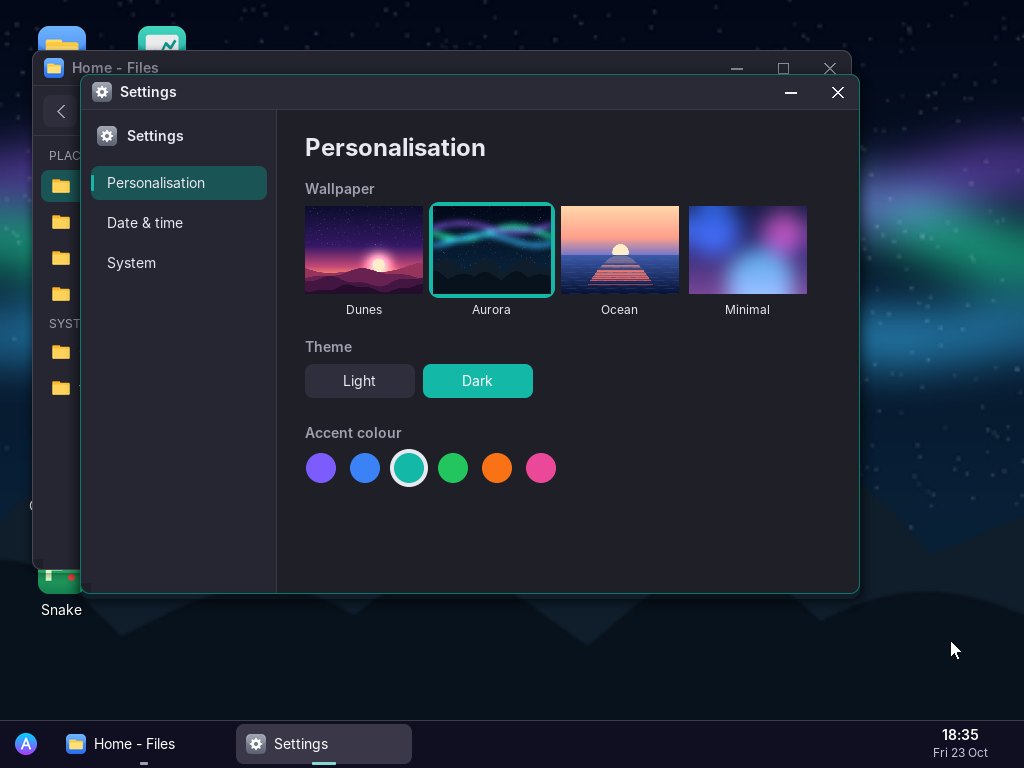
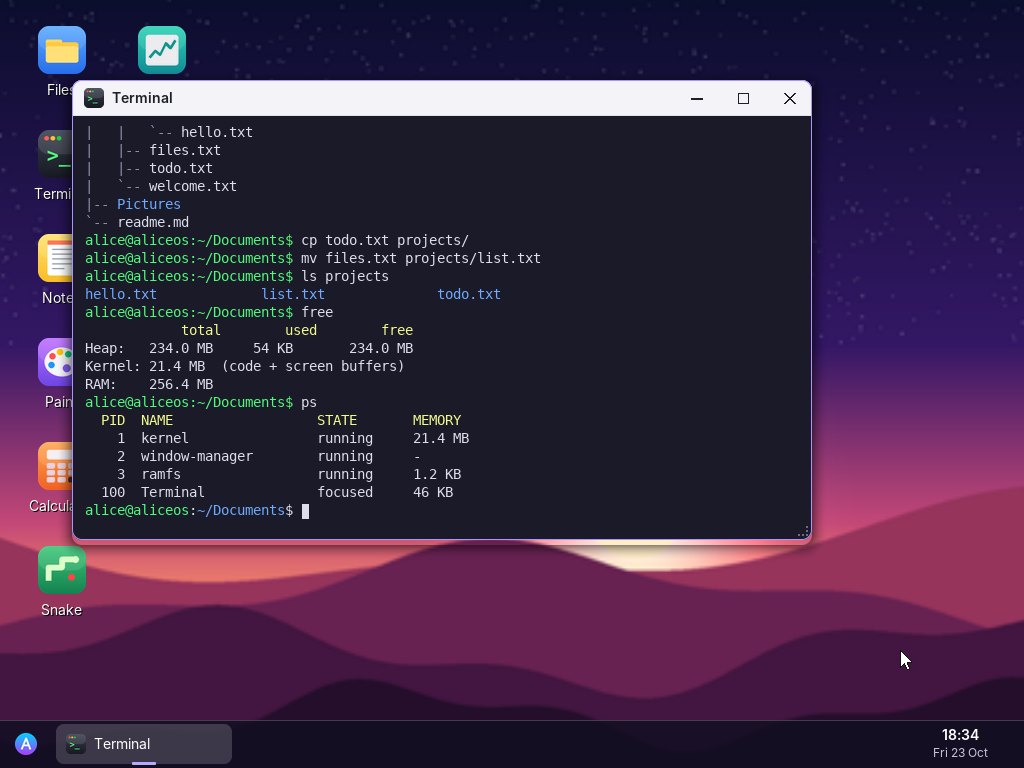
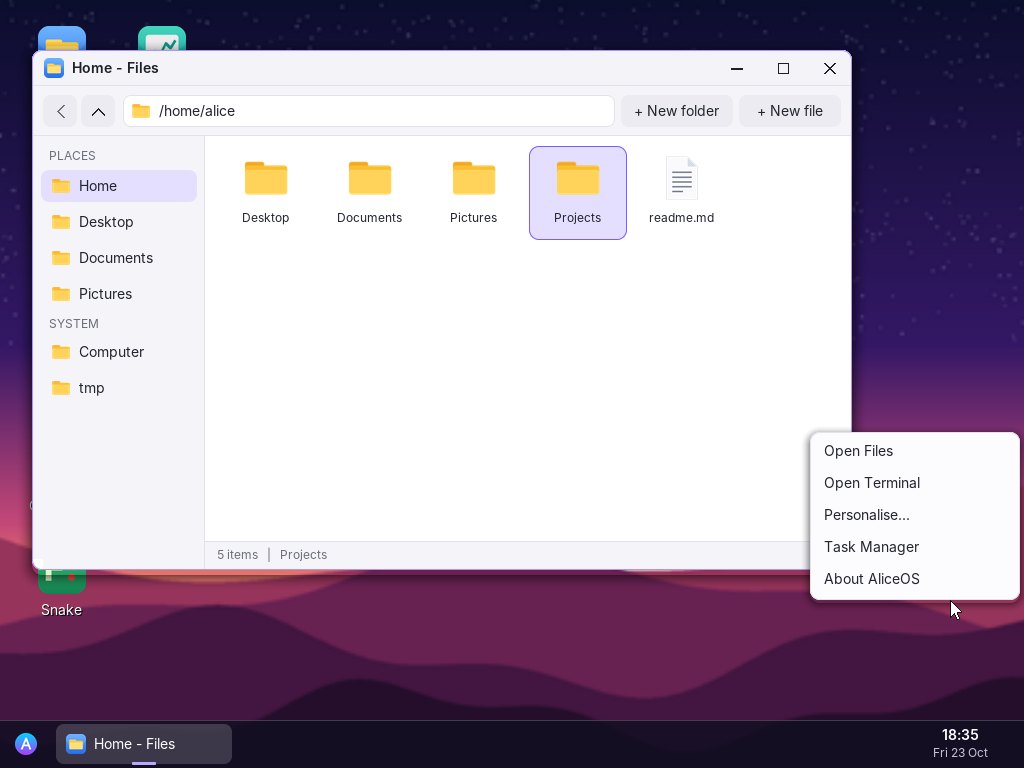
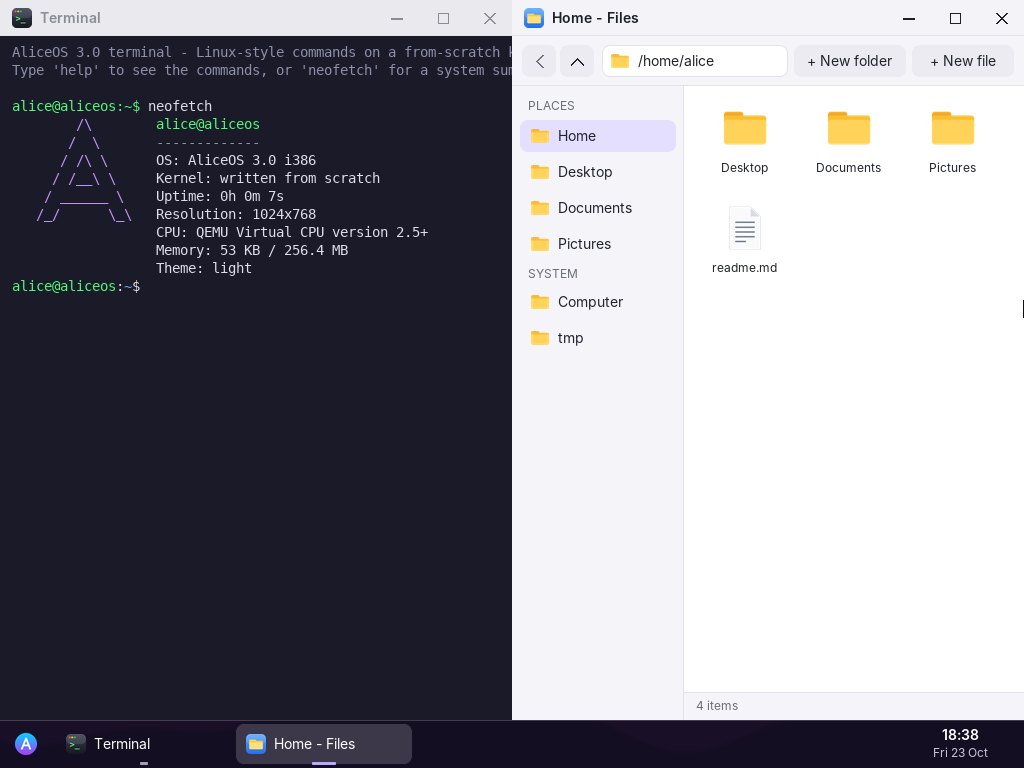
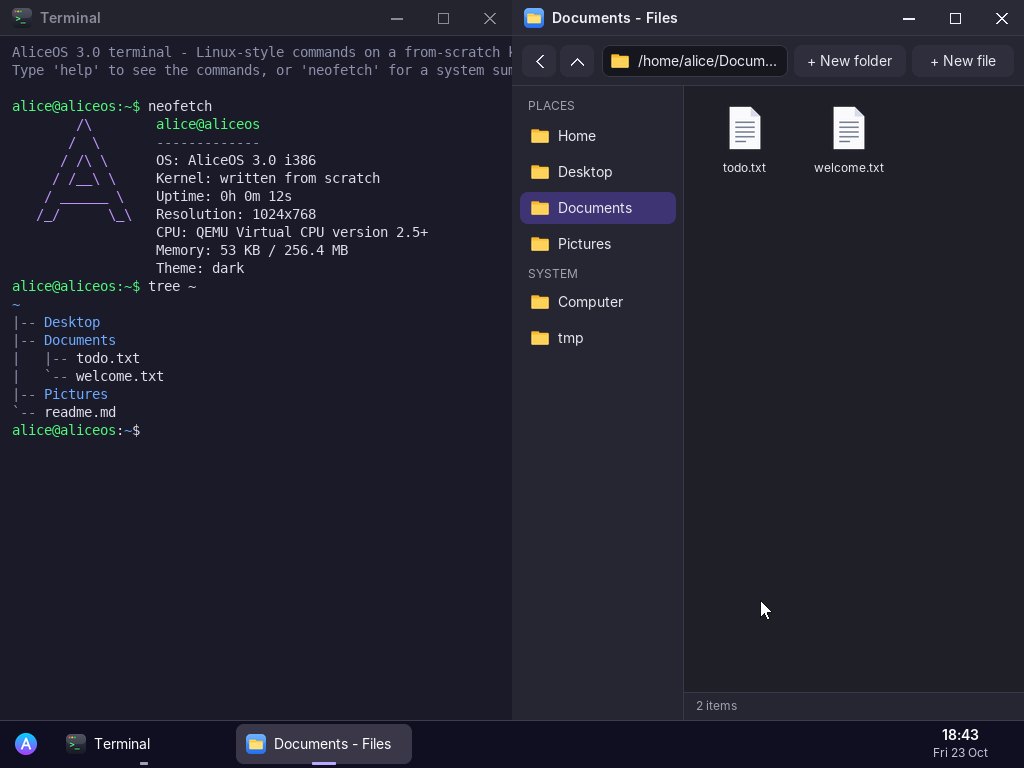
AliceOS desktop with a Linux-style terminal and a file explorer side by side, in dark mode

The best of two worlds

Every line of AliceOS — about 4,500 of them in C and assembly — was written for this project. No Linux kernel, no libraries.

Like Windows

Desktop and windows

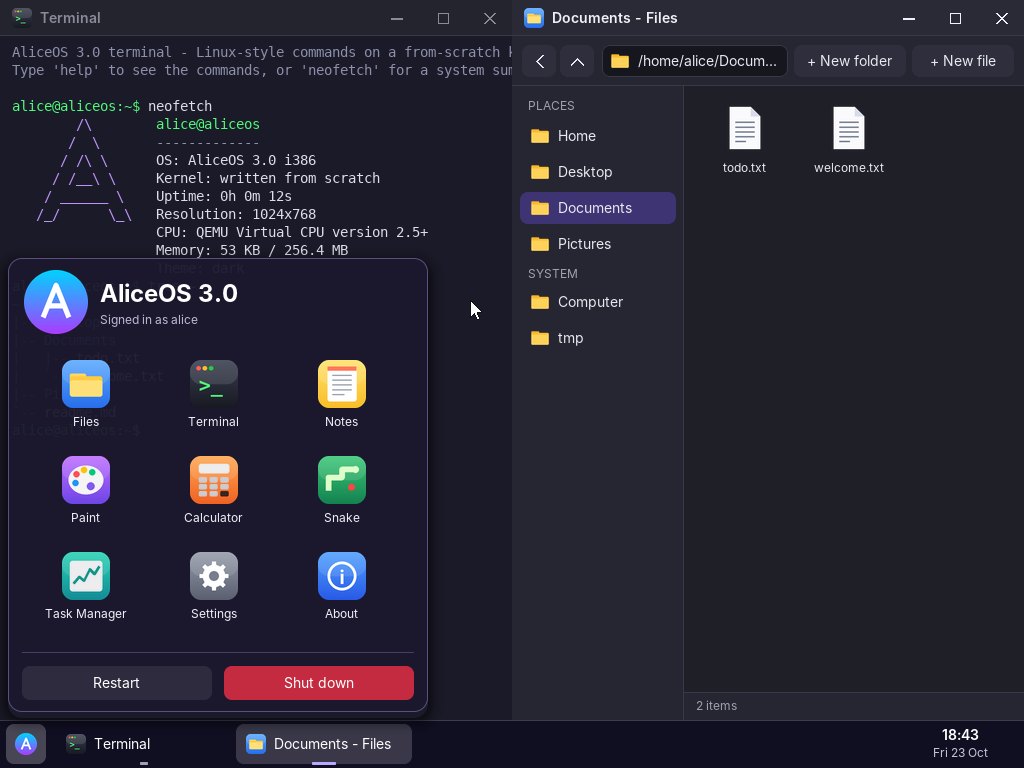
Taskbar, start menu, notifications. Move, resize and maximise windows, or drag them to an edge to snap them side by side. Alt+Tab switches between apps.

Like Windows

File explorer

Browse folders, create, rename and delete files, right-click menus, and double-click to open a file in the right app.

Like Windows

Task Manager and Settings

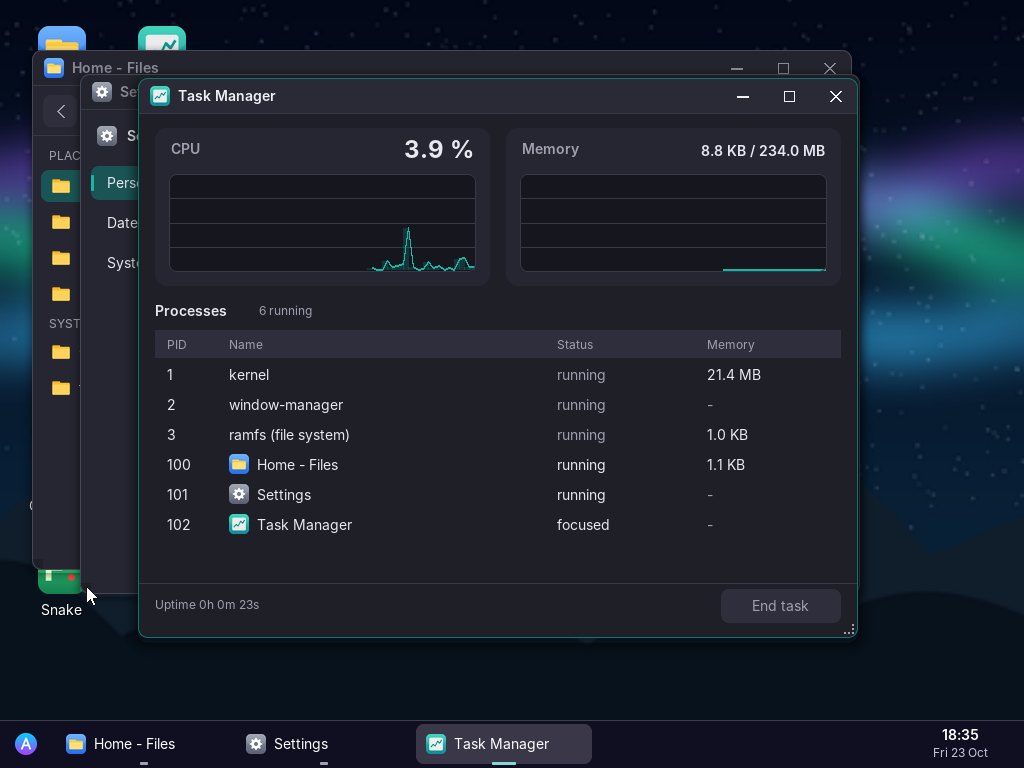
Live CPU and memory graphs with End task. Four wallpapers, light and dark themes, six accent colours and a time zone setting.

Like Linux

A real shell

ls -l, cd, mkdir, cat, rm -r, mv, cp, tree, redirection with > and >>, Tab completion and history.

Like Linux

A familiar file tree

/bin, /etc, /home/alice and /tmp. System folders belong to root and are read-only; ps, kill, free and df show what is running.

Built in

Nine apps

Files, Terminal, Notes, Paint, Calculator, Snake, Task Manager, Settings and About. Notes and Paint save your work as files.
See it running

A real recording of AliceOS, not a mock-up.

Try it in VirtualBox

VirtualBox runs AliceOS in a window, safely, without touching your computer. It takes about five minutes and is completely free.

  1. Install VirtualBox

    Download it free from virtualbox.org for Windows, Linux or an Intel Mac, and install it.

  2. Download AliceOS

    aliceos-3.0.iso (14.5 MB). There is nothing to unzip: the ISO is the whole system.

  3. Create a virtual machine

    In VirtualBox click New. Name it AliceOS, choose the ISO you downloaded, then set Type: Other and Version: Other/Unknown. If VirtualBox mentions unattended installation, ignore it: AliceOS needs no installation.

  4. Memory and processor

    Set Base Memory to 256 MB (512 MB is fine too) and keep 1 CPU.

  5. No hard disk

    Choose Do Not Add a Virtual Hard Disk and confirm. AliceOS runs entirely from the ISO and memory.

  6. Check two settings (optional)

    In Settings → System, the pointing device should be PS/2 Mouse. In Settings → Display, keep the default graphics controller and at least 16 MB of video memory.

  7. Start

    Click Start. AliceOS boots in a couple of seconds. Click inside the window to use the mouse; press the Host key (Right Ctrl on Windows and Linux, Left ⌘ on Mac) to give the mouse back to your computer.

Other ways to run it

QEMU (Windows, Linux, macOS):

qemu-system-i386 -cdrom aliceos-3.0.iso -m 256

A real PC: write the ISO to a USB stick with Rufus in “DD image” mode, turn off Secure Boot and boot from the stick. AliceOS never writes to your hard disk. The keyboard and mouse need PS/2 or “USB legacy support” in the BIOS, because there is no USB driver yet.

Check your download

SHA-256 of aliceos-3.0.iso:

0a94b5ebda7e9fd6cdd5f51df3d78c6d3267d259f76a970b6efd30a7487e573f

Windows: certutil -hashfile aliceos-3.0.iso SHA256
Linux/macOS: sha256sum aliceos-3.0.iso
Also available as aliceos-3.0.iso.sha256.

Questions

Is it safe to try?

Yes. In VirtualBox, AliceOS runs inside its own virtual machine with no hard disk attached, so it cannot touch your files. On a real PC it only reads the USB stick and never writes to any disk.

Can it replace Windows or Linux?

No, and it does not try to. AliceOS is a learning and showcase project: it has no internet, sound or USB drivers yet, and files are not kept after shutdown. Its goal is to show how an operating system works, from the boot loader to the desktop.

The mouse is stuck inside the window

Press the Host key (Right Ctrl on Windows and Linux, Left ⌘ on Mac). In QEMU, press Ctrl+Alt+G.

I have a Mac with an Apple chip (M1, M2, M3, M4)

AliceOS is built for Intel-compatible (x86) processors. VirtualBox on Apple chips cannot run it; you can use UTM with x86 emulation instead, which works but runs more slowly.

The screen stays black

Check that the VM type is “Other”, that it has at least 256 MB of memory and 16 MB of video memory, and that the ISO is attached to the optical drive. Then restart the VM.

What can I try first?

Open the Terminal and type neofetch, help or tree ~. Right-click the desktop, drag a window to the edge of the screen, switch to dark mode in Settings, or play Snake.